Part 1 - Customize Your Store
In Part 1 of the guide, you will turn the standard shop design into your shop.
Nothing goes
on the Internet yet, and this doesn't cost any money. If you don’t like the result, you
can change the instructions and run it again.
Open the store launcher
Everything starts from one button in your PingBusiness dashboard. The
launcher is a small page that writes the technical instructions for you - you
fill in a short form, and it produces a block of text to hand to Cursor. You never
write any of it yourself.- Sign into PingBusiness.
- In the menu on the left, click My Store.
- Click Open store launcher.
- You’ll see two tabs with these details, stay on tab 1:
- Customize UI
- Deploy store
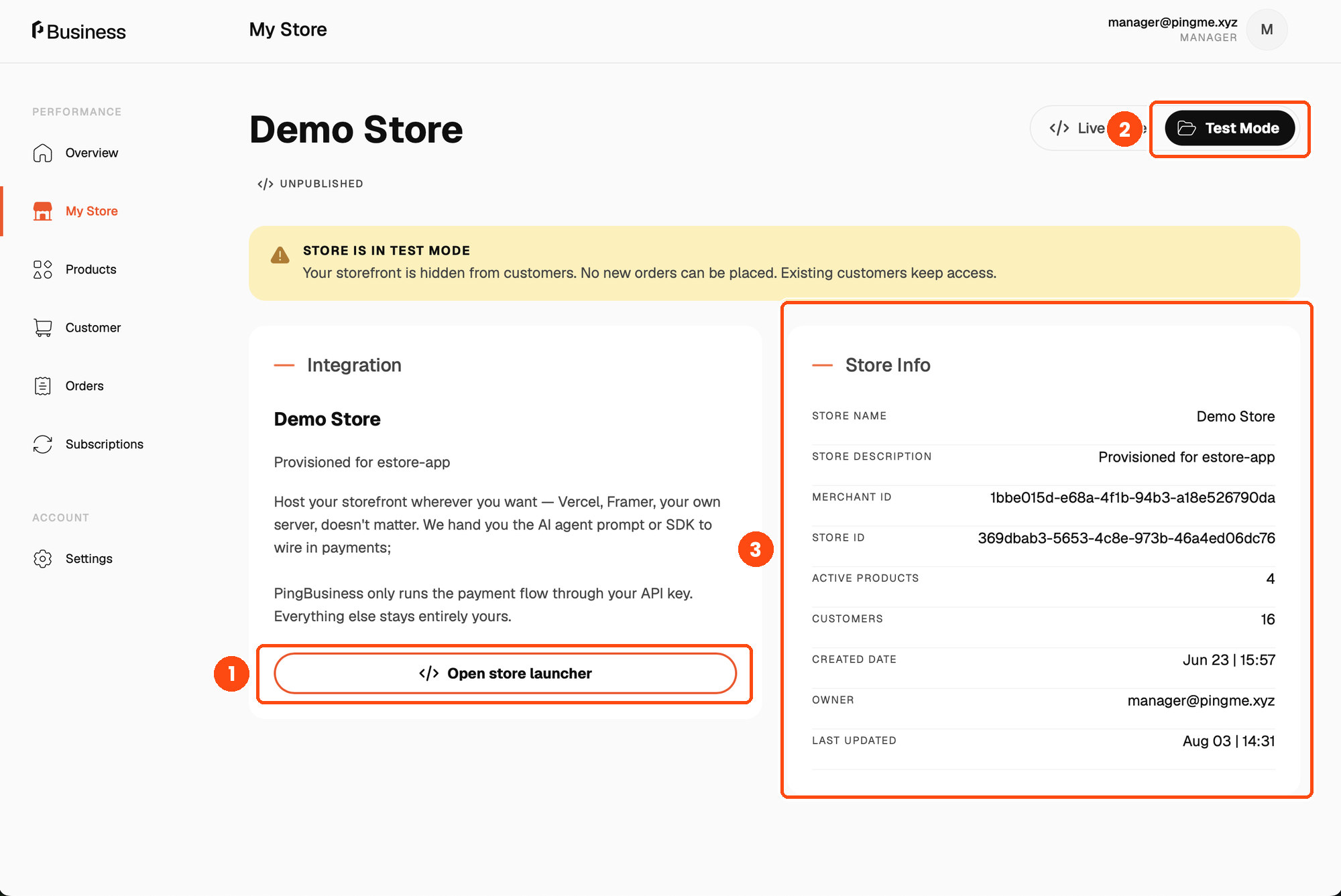
(1) The button you click (2) The Test Mode switch (3) Your store’s details
Opening the launcher from here carries your store’s details across automatically, so there is nothing for you to copy.
Describe your brand
This is where you describe how your store should look in plain-English description.
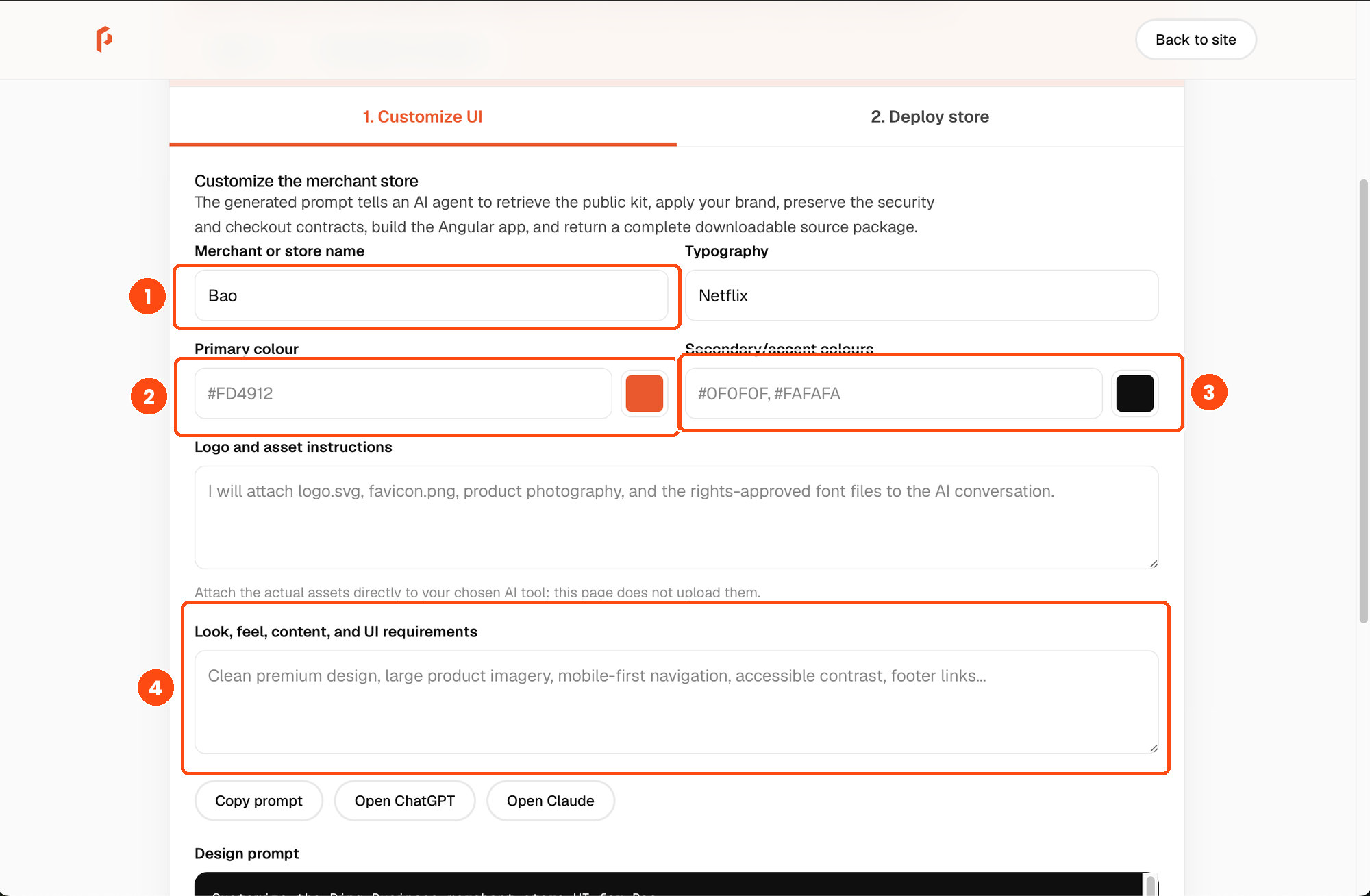
- Store name - what customers should see.
- Primary colour - your main brand colour, as a code like #FD4912. If you only know roughly what you want, search online for "colour picker" and copy the code it gives you
- Secondary / accent colours - one or two more.
- Typography - the lettering style, if you have one.
- Look, feel, content and UI requirements - write plainly what you want. “Clean premium design, large product imagery, mobile-first navigation, accessible contrast” is a perfectly good answer.
Copy the prompt and paste it in Cursor
In this example, we are using a popular AI assistant, Cursor. You can use any other supported AI assistant that runs on your own device.
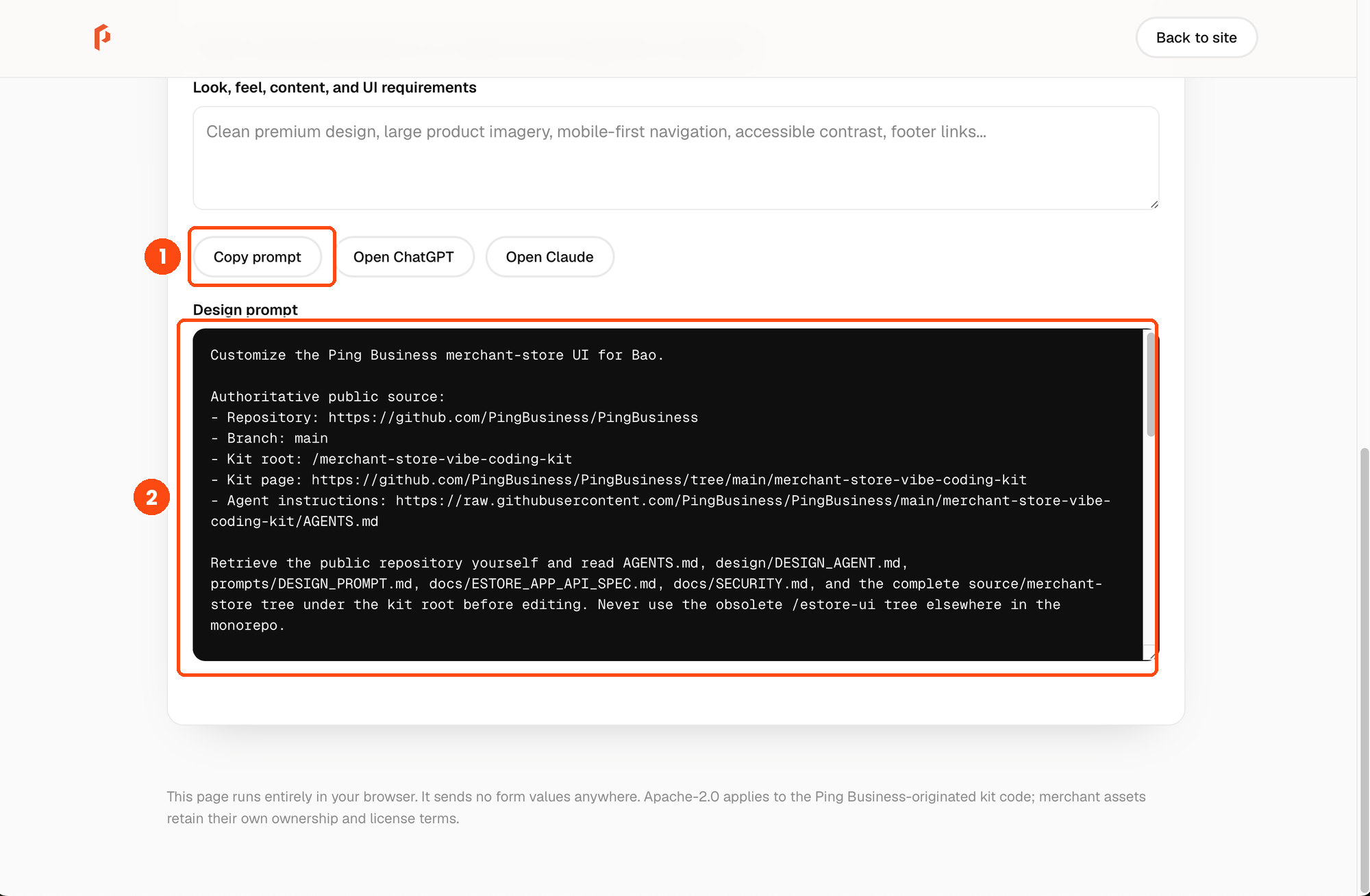
- Scroll down and click Copy prompt.
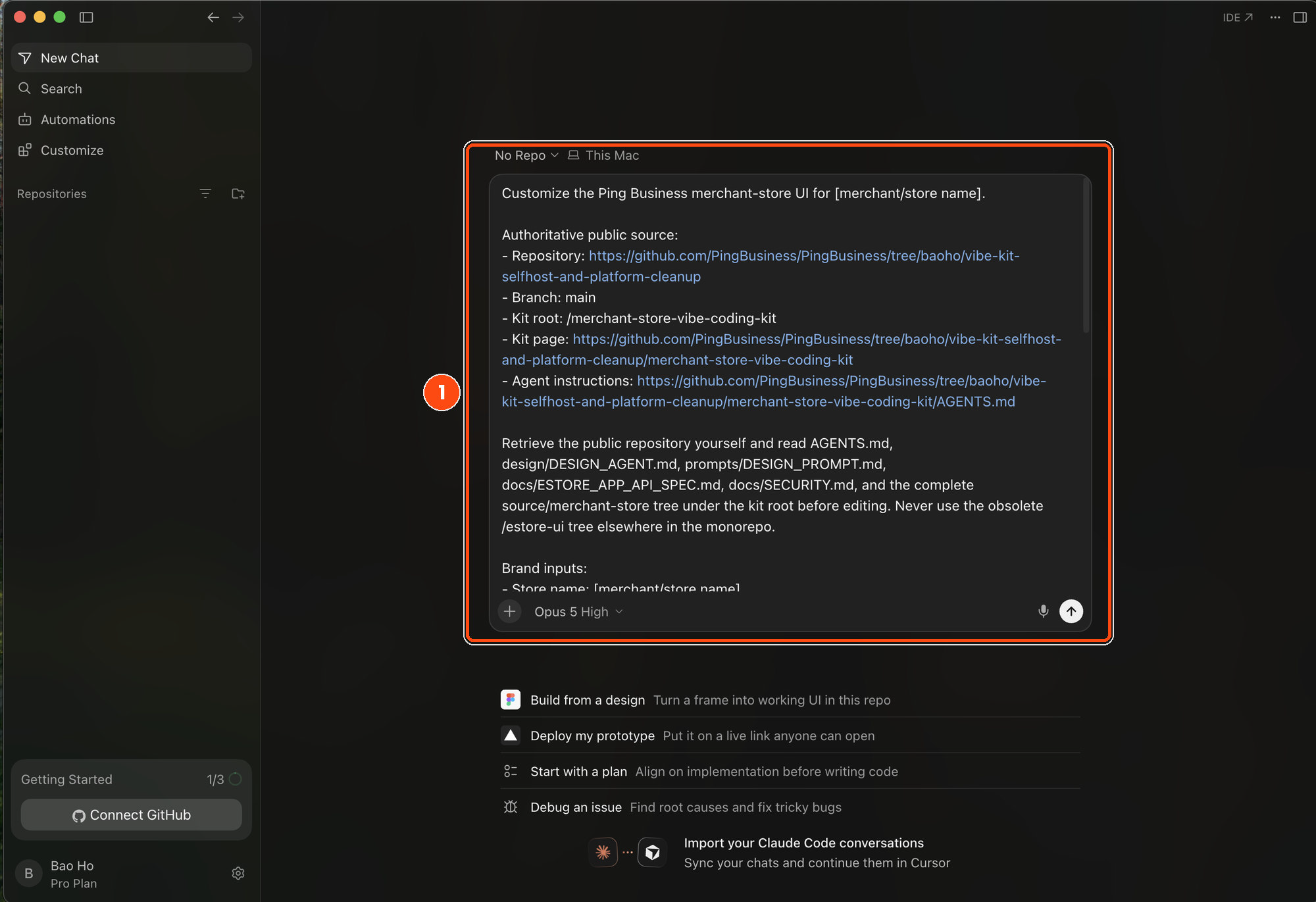
- Open Cursor and start a new chat.
- Paste the prompt text in.
- Attach your logo and product photos to the same message.
- Send the prompt.
Let the prompt work for you
Now you wait. The prompt will trigger Cursor to fetch the shop software, reads its instruction manual, and works through the changes. You’ll see it moving through files - you don’t need
to follow along.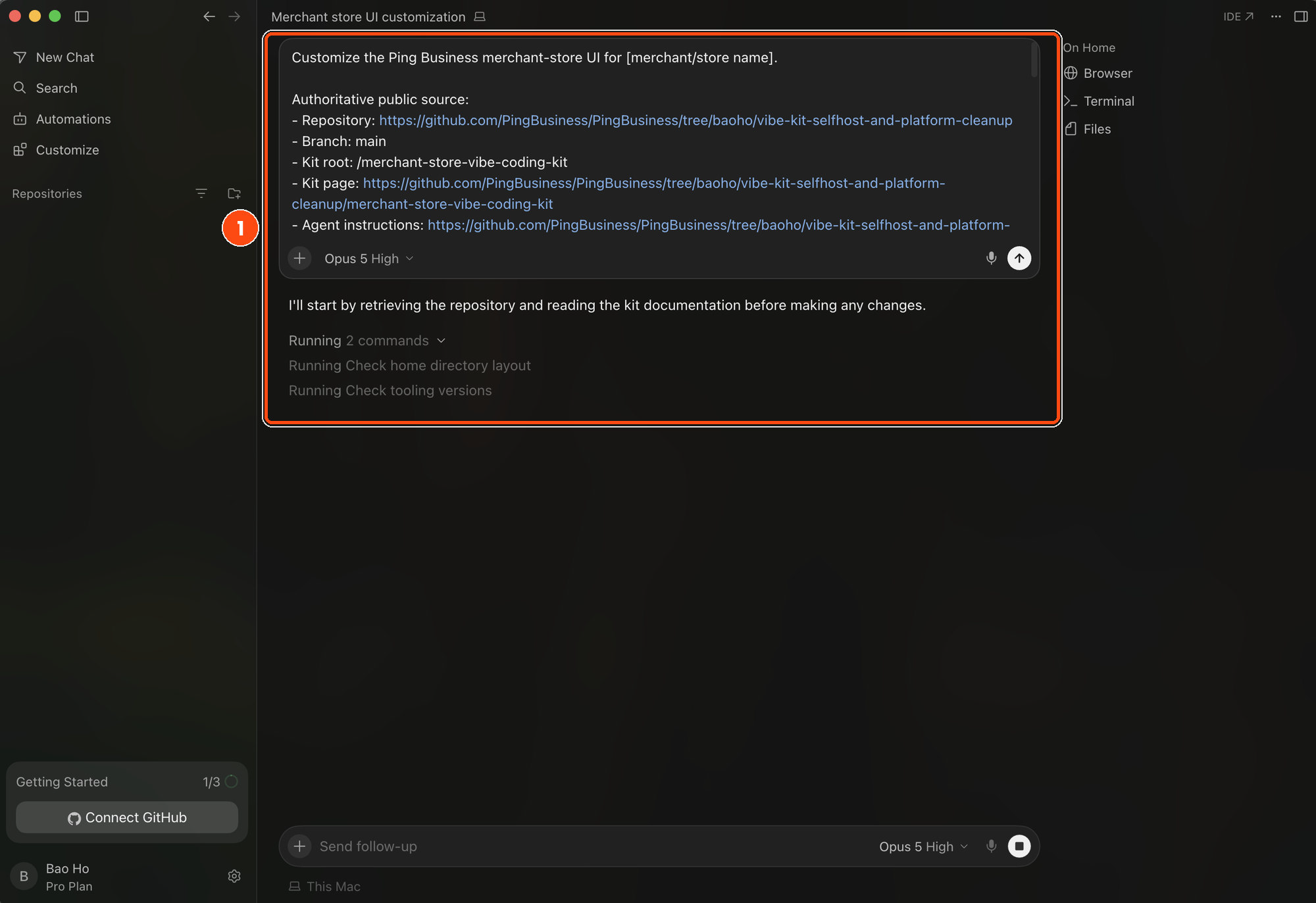
(1) What it does before touching anything
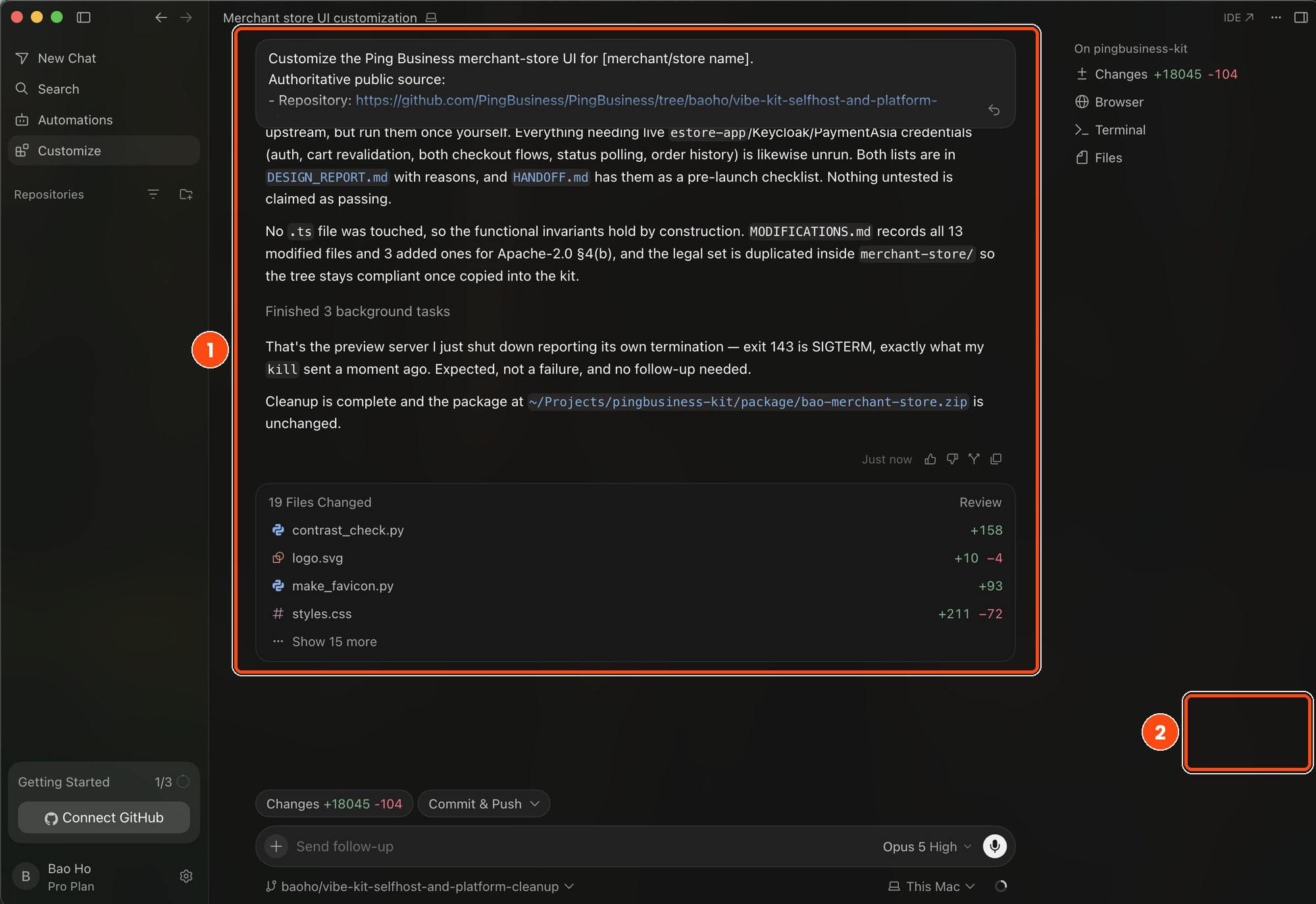
(1) A written record of every change (2) The files it edited
What to look for when it finishes:
- A list of what it changed, and a note that the rest was left alone.
- A mention of a secret scan - proof that no passwords or keys were left in the
part of the shop customers download. - A list of things it couldn’t check. This is a good sign - it means it is being honest
rather than claiming everything works.
View your store
Before anything goes online, have a look at your store. It will run the shop on your own computer and give you a link to access.
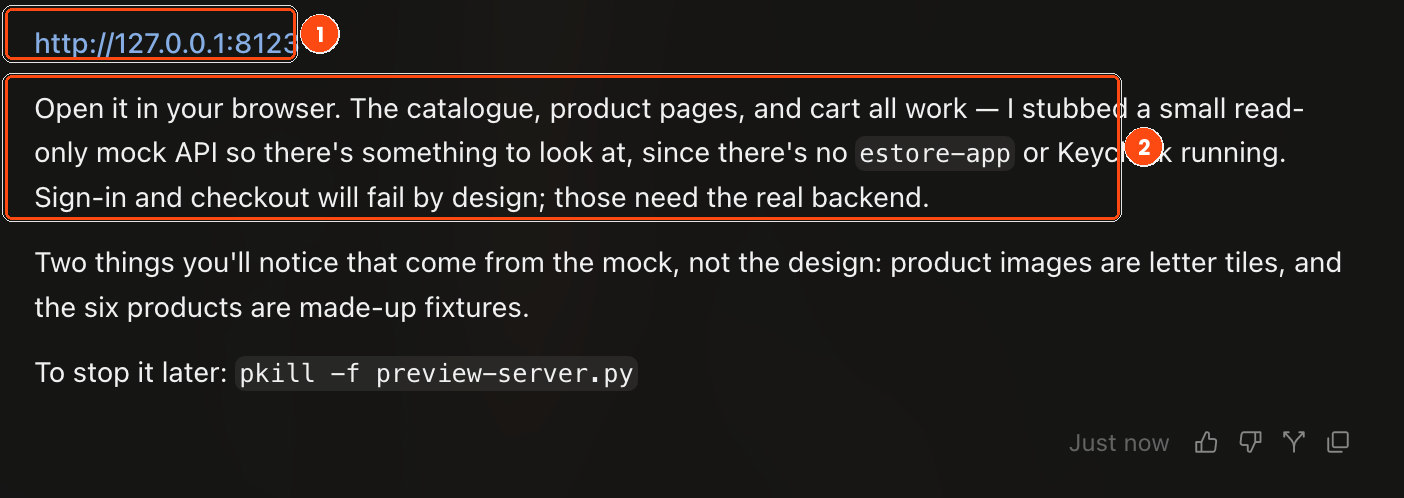
(1) Open this in your browser (2) What will not work yet, and why
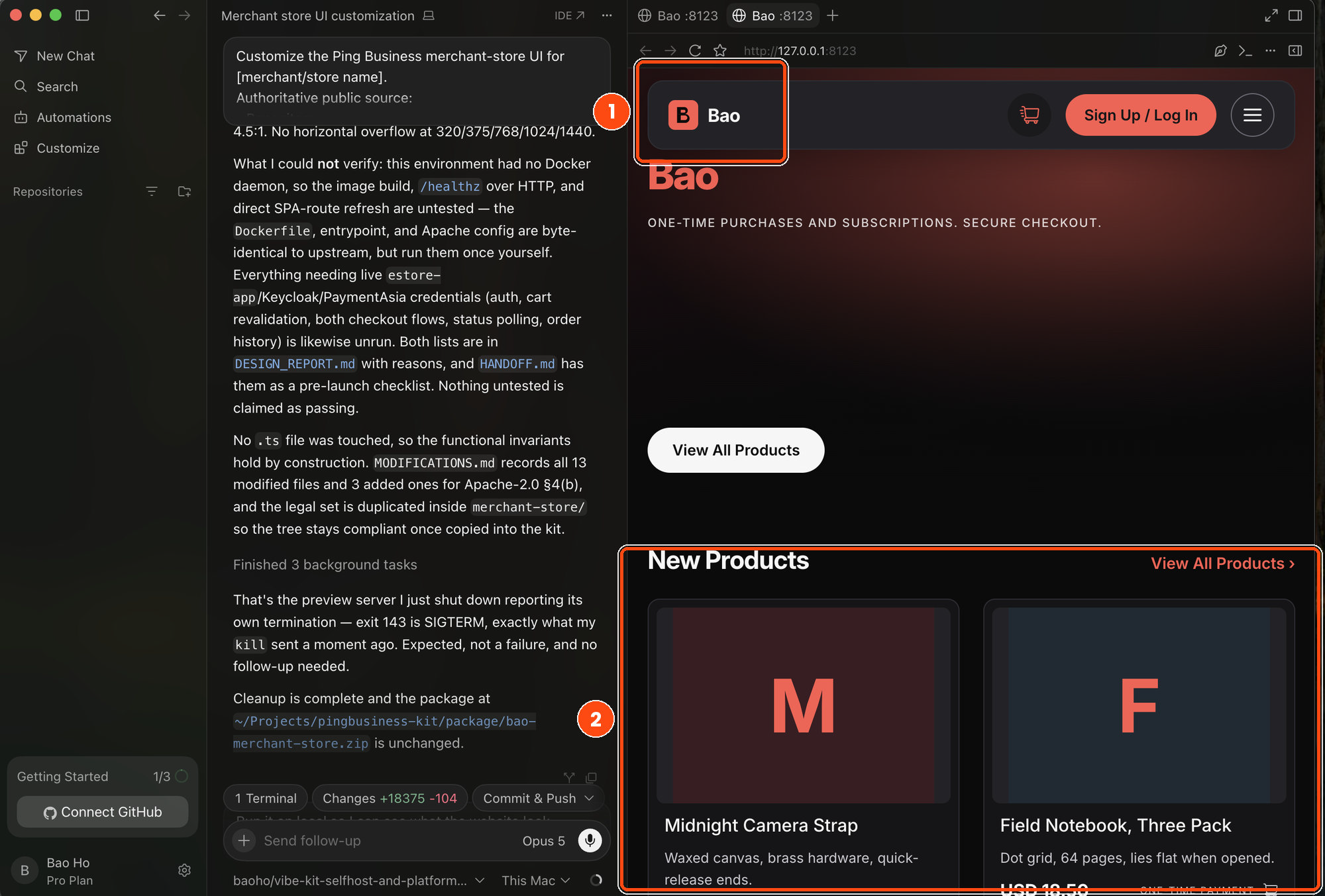
(1) Your store name and colours (2) The product grid
Want to make changes? Just ask the prompt in plain words
Make the banner darker and the buttons rounder.The product titles are too small on my phone.Then have a look again and repeat until you’re happy - this costs nothing and changes nothing on the internet.Read what Cursor decided, then move on
Cursor will explain the choices it made and flag anything only you can decide - a font license, say, or a piece of text it couldn’t change safely.
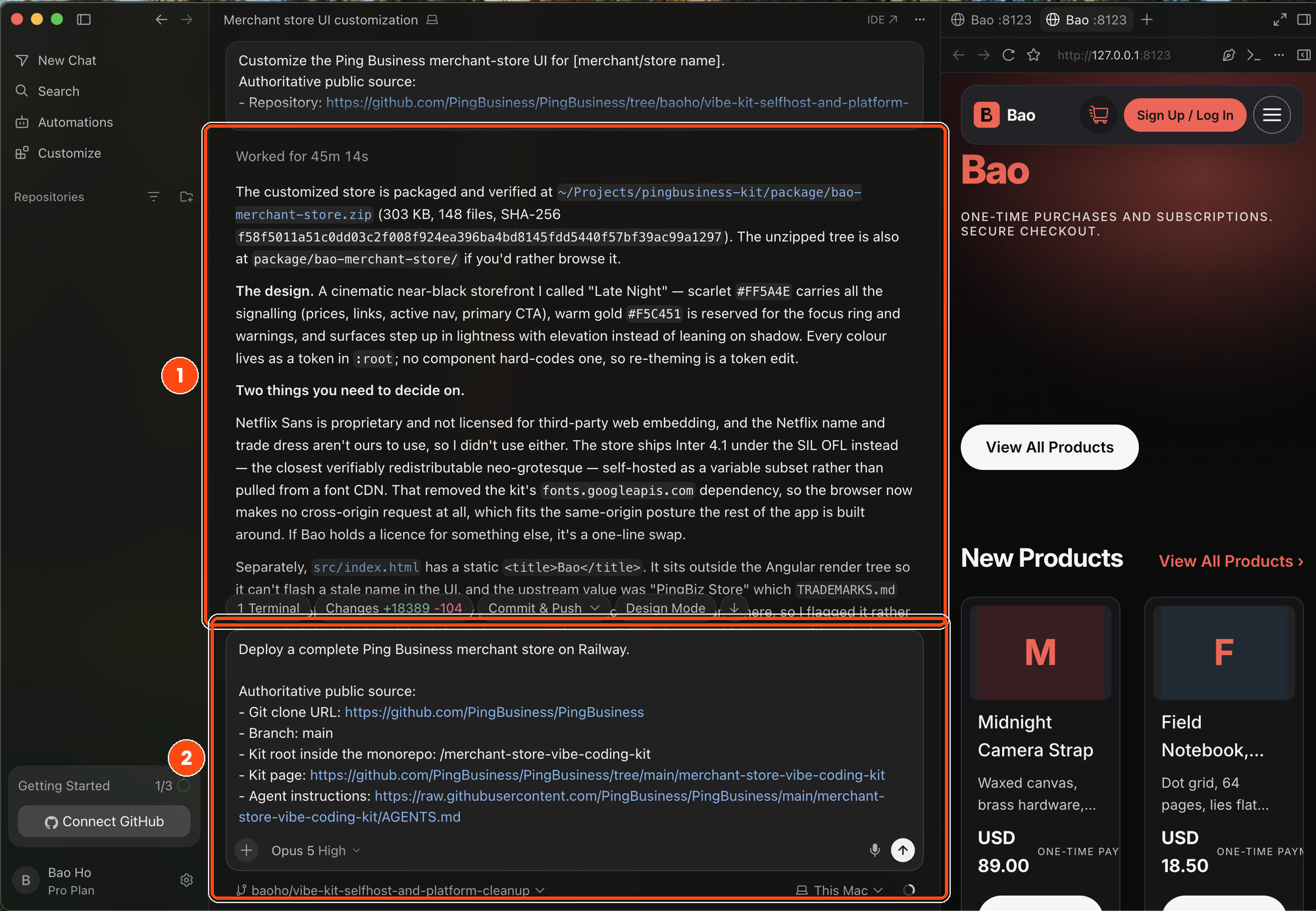
(1) What it built and what it decided (2) The pasted deploy instructions